Cook Any Recipe in Your Language With SeeMeCook
SeeMeCook has two language settings, and each one does a different job. Recipe Language is the setting for the language of your recipes. App Language decides the language of SeeMeCook’s own buttons and menus. Changing one never changes the other, so you can keep the app’s menus in English and set Recipe Language to Spanish.
What recipe translation does
When SeeMeCook translates a recipe you have saved, it rewrites the words. That covers the title, the description, the names of the ingredients, the steps, the tags and any notes. The numbers are left alone. Every ingredient keeps the amount and the unit it had, and the servings, the cooking times and the nutrition estimate stay as they were. SeeMeCook never changes a quantity when it translates a recipe.
The person who made the recipe stays on it too. When SeeMeCook can tell who the creator is, the credit and the link back to the original stay on the recipe in every language.
A translation is stored beside the recipe’s original wording and doesn’t replace it. A translated recipe has a button that ends with the words Show original, and tapping it brings back the recipe as it was first written.
How to set Recipe Language
- Open the Profile tab and tap the round button with three dots. On iPhone it is at the top right of the screen.
- Tap Settings.
- Tap Recipe Language. On iPhone it is in the group headed Recipes, and on Android it is in the group headed Language.
- Choose your language from the list.
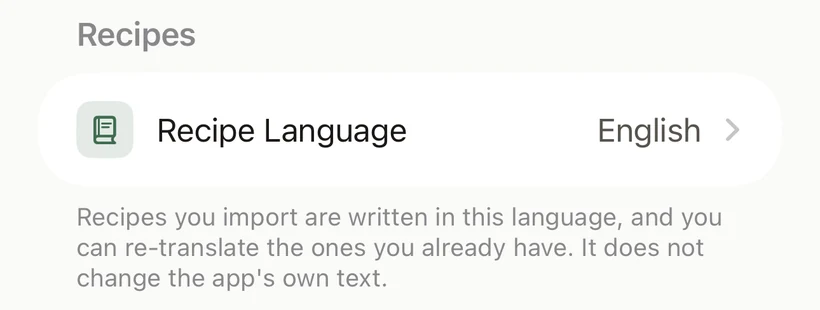
On iPhone, the app explains the setting in these words: “Recipes you import are written in this language, and you can re-translate the ones you already have. It does not change the app’s own text.”
What happens to a recipe you import depends on which language you chose. When Recipe Language is set to a language other than English, each recipe you import is written in that language. When it’s set to English, a recipe keeps the language of its source, so a video in Spanish is saved as a recipe in Spanish. To put that recipe into English, open it, tap the three-dot menu, tap Translate and choose English from the list headed Translate Recipe. Translate is part of SeeMeCook Pro.
As soon as you change the setting, SeeMeCook asks Translate Existing Recipes? Tap Translate All if you want the recipes already in your Library translated too, or tap Just New Recipes and they stay as they are.
Translate works the same way on any recipe you saved. Open the recipe, tap the three-dot menu, tap Translate, and choose a language from the list.
Once a recipe is in your language, Cooking Mode shows it to you step by step as you cook.
The app’s own menus in 88 languages
SeeMeCook’s buttons, menus and screens are available in 88 languages on iPhone and on Android. The setting for them is App Language, which is in Settings in the group headed Language. Until you change it, SeeMeCook follows your phone’s language.
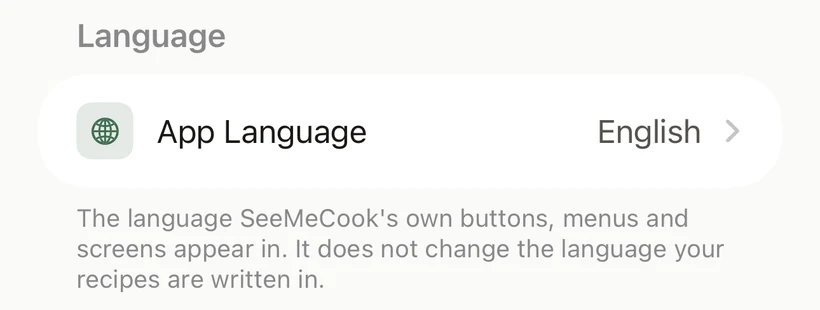
On iPhone, the explanation under it reads: “The language SeeMeCook’s own buttons, menus and screens appear in. It does not change the language your recipes are written in.”
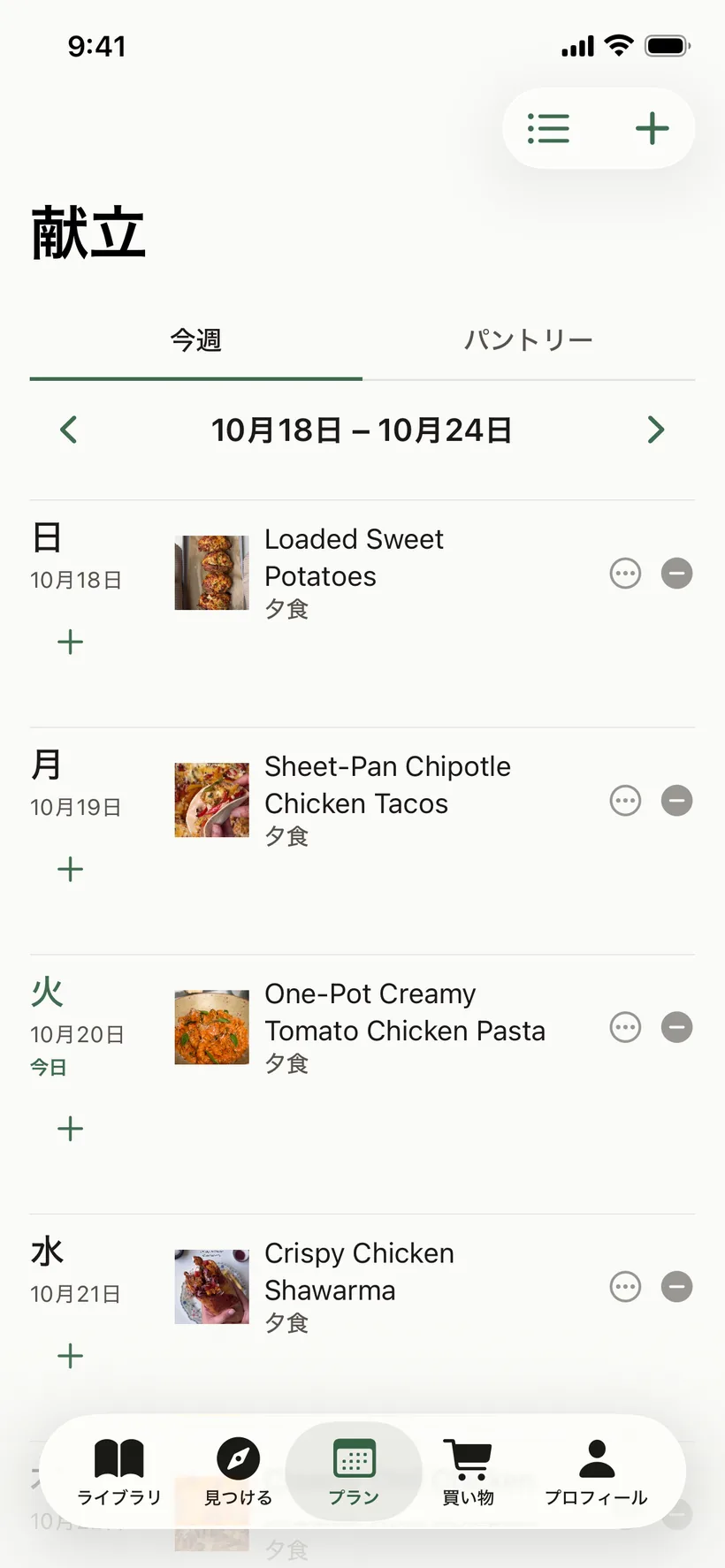
The next two pictures show what that means. In the first, the app’s menus are in Japanese, and the recipes on the meal plan still have English titles because they were saved in English.
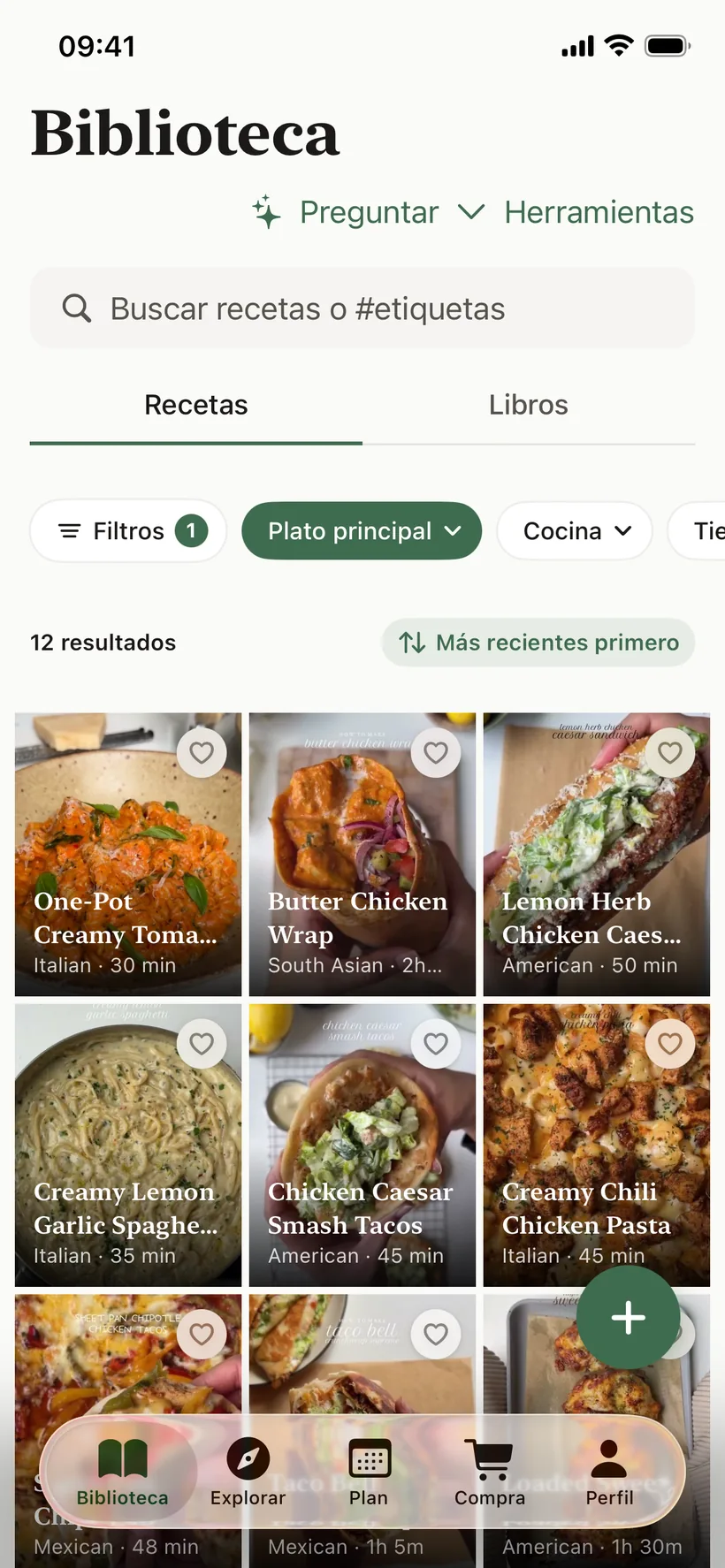
In the second, the Library’s search box, tabs and filters are in Spanish, and the recipes in it are still in English for the same reason. To change the language of the recipes themselves, use Recipe Language.
When a video gives no amounts
Some cooks never say how much of anything goes in. When a video or a recipe card does not state its quantities, SeeMeCook says so on the recipe. Translating the recipe doesn’t change that, because translation doesn’t touch the numbers. The guide to saving recipes from TikTok, Instagram and YouTube explains what to do with a recipe like that.
Common questions
Does translation change the amounts?
No. Translation changes the words only. Every ingredient keeps its amount and its unit, and the servings and cooking times stay the same. Showing the measurements in metric or US units is a separate choice that you make on the recipe.
Which recipes can I import?
You can share a cooking video from TikTok, Instagram or YouTube to SeeMeCook, paste the link to a video or a recipe page, upload a video, or photograph a cookbook page or a handwritten card. Not every link can be opened, and not every post contains a complete recipe. The guide to handwritten recipes and cookbook pages covers recipes on paper.
Is the creator still credited on a translated recipe?
Yes. When SeeMeCook can identify the creator, the credit stays on the recipe, and so does the link to the original, whatever language you’re reading it in.
Where to get SeeMeCook
Translating the recipes you already have, with Translate All or with Translate on a single recipe, is part of SeeMeCook Pro, which costs $4.99 a year or $2.99 a month in the US. You can get SeeMeCook from the App Store on iPhone and from Google Play on Android.
Cook from recipes written in your language
Recipe Language and App Language are both in Settings, and translating a recipe never changes an amount.
Get SeeMeCook free