SeeMeCook Cooking Mode: Steps Read Aloud, Hands-Free
Cooking Mode is the screen in SeeMeCook that you cook from. It shows a saved recipe one step at a time in large type, and it keeps your phone’s screen awake for as long as it is open. It can also read each step aloud and run the timers the recipe calls for, on iPhone and on Android.
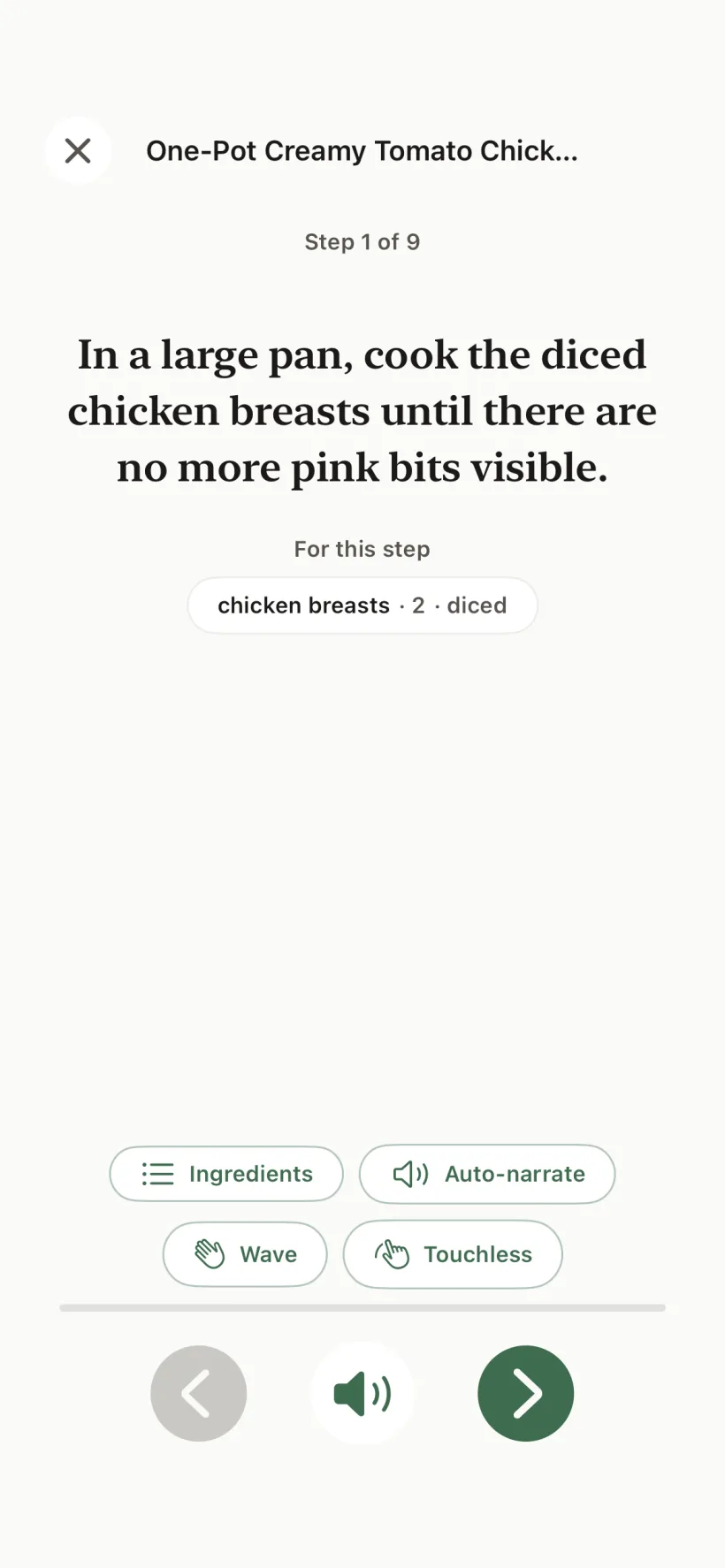
Having the steps read aloud
The round button with a speaker on it is at the bottom of the screen, between the two arrows. Tap it, and SeeMeCook reads the step you are on out loud. Tap it again while it’s reading, and it stops.
To have every step read without tapping each time, tap Auto-narrate, which is in the buttons just above the arrows. SeeMeCook reads the current step straight away, and then reads each new step as you reach it. Auto-narrate stays on the next time you cook, until you tap it again to turn it off.
Try the speaker button once before your hands are dirty, so that you can set the volume on your phone.
The ingredients for the step you are on
When a step uses ingredients, they are listed under the instruction with their amounts, below the heading For this step. You don’t need to leave the step to look up how much stock goes into the pan.
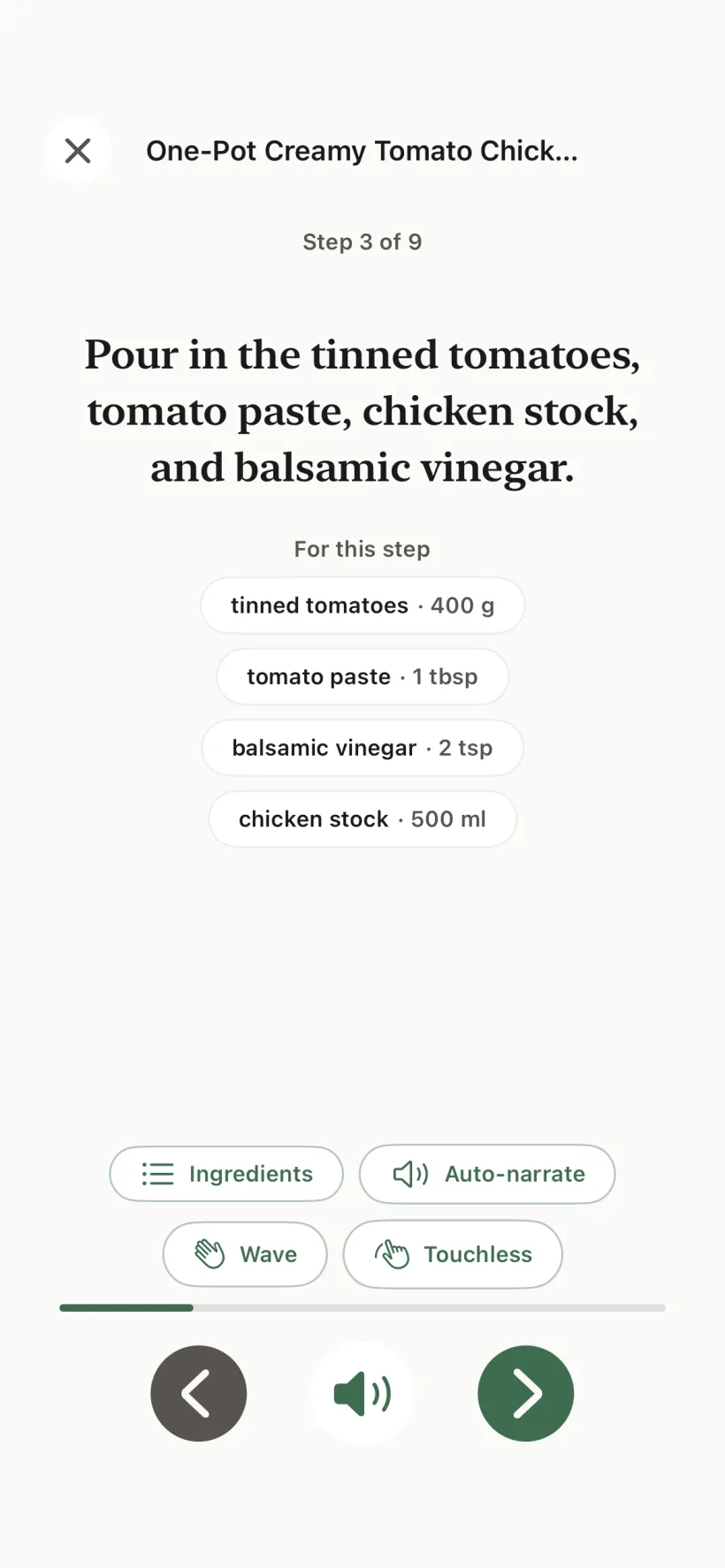
For the whole list, tap Ingredients. The full ingredient list opens over the step, and you can tick off each ingredient as you add it.
Timers that come from the steps
When a step gives a time that SeeMeCook recognizes, a button with that time on it appears above the other buttons. In the picture below, the step says to cook the pasta for about 12 minutes, and the button reads Start 12m timer. Tap it when that part of the cooking begins, and the countdown appears at the top of the screen with the number of its step.
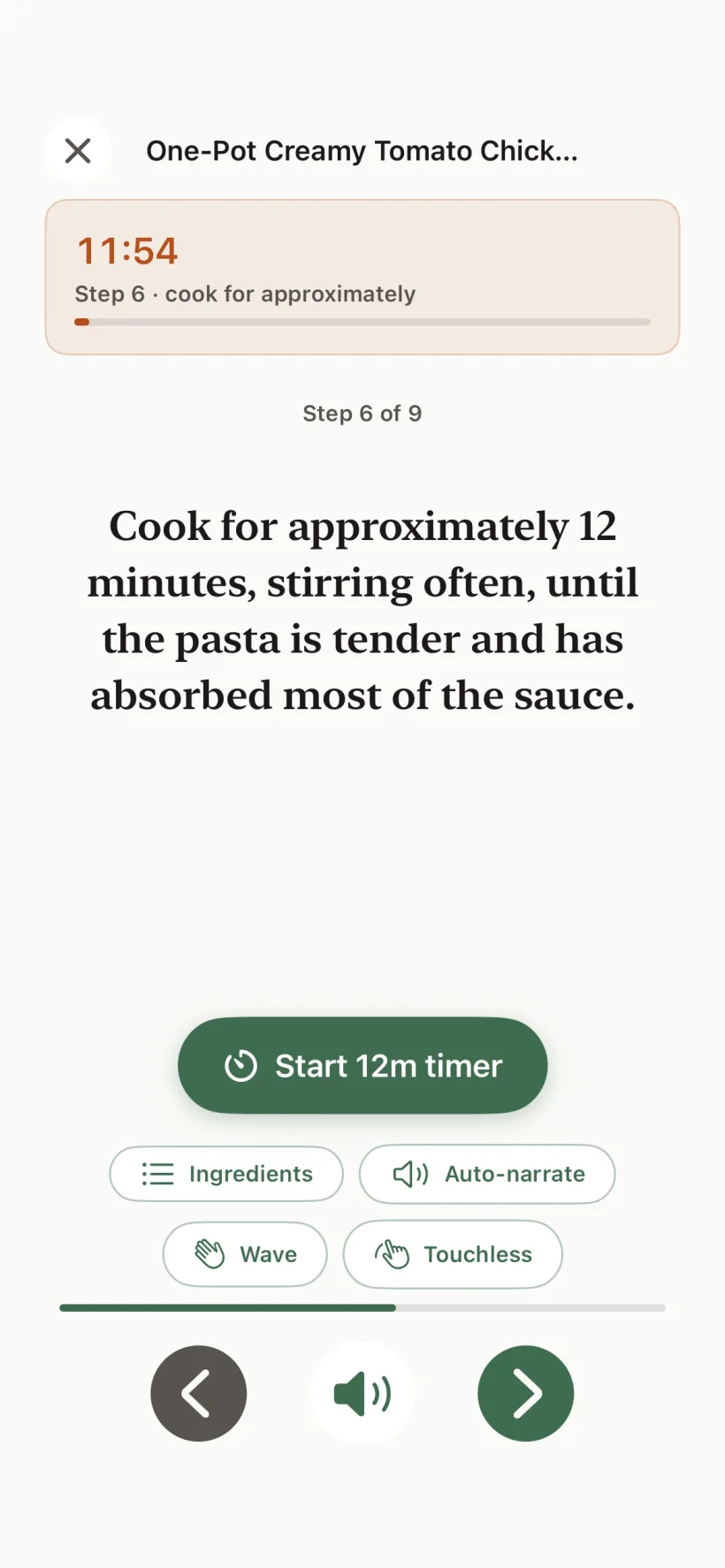
A timer keeps counting when you move to the next step, so you can carry on with the recipe while the pasta cooks.
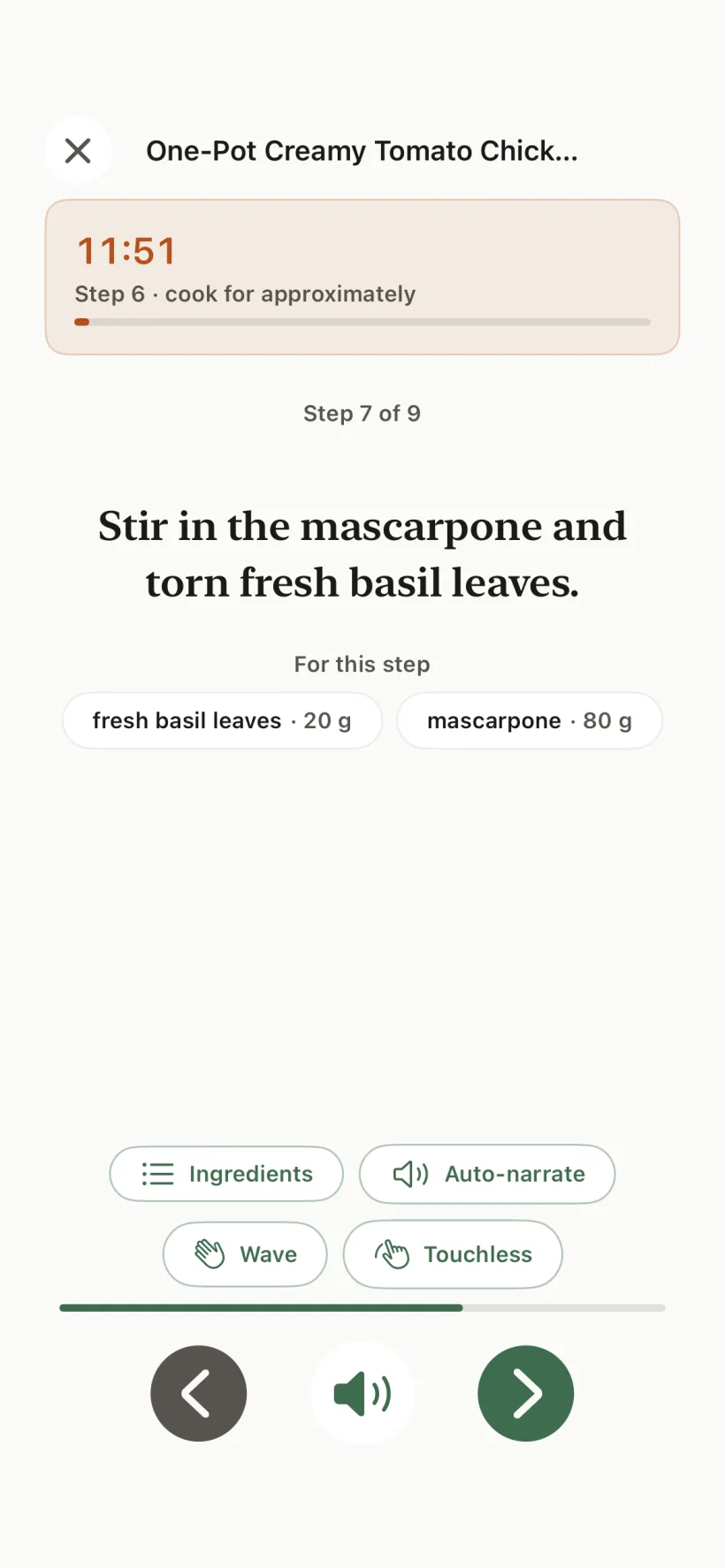
Two timers can run at once. If a later step has a time of its own, start that timer as well, and both countdowns are shown at the top of the screen.
The time left is also shown outside the app, on the Lock Screen and in the Dynamic Island on iPhone, and in your notifications on Android. Your phone alerts you when a timer runs out. Closing Cooking Mode ends its timers, so don’t close it until they have finished.
Moving to the next step without touching your phone
The arrow on the right moves to the next step, and the arrow on the left goes back. When your hands are covered in flour, there are two ways to move on without touching the screen.
- Wave is the simpler one. Tap it to turn it on, and then pass a hand over the top of the phone to go to the next step. Wave is off each time you open Cooking Mode, so you turn it on when you want it. On iPhone the screen goes dark while your hand is near the top and comes straight back, and the phone gives a small buzz to show that it saw the wave.
- Touchless opens a screen with two more controls. Hand control uses the phone’s camera. With the phone upright in a stand, you pinch your thumb and index finger together, move your hand sideways and let go to change steps. Voice commands listen for four phrases, which are “Chef next”, “Chef back”, “Chef repeat” and “Chef start timer”. They need speech recognition for your language to be available on the phone itself. The Touchless screen says that camera frames and voice audio stay on your phone and are never saved or uploaded.
Cooking Mode on Apple Watch
SeeMeCook has a companion app for Apple Watch. It shows the step you are on and your timers, and it also includes your shopping list.
How to start Cooking Mode
- Open SeeMeCook and tap a recipe in your Library.
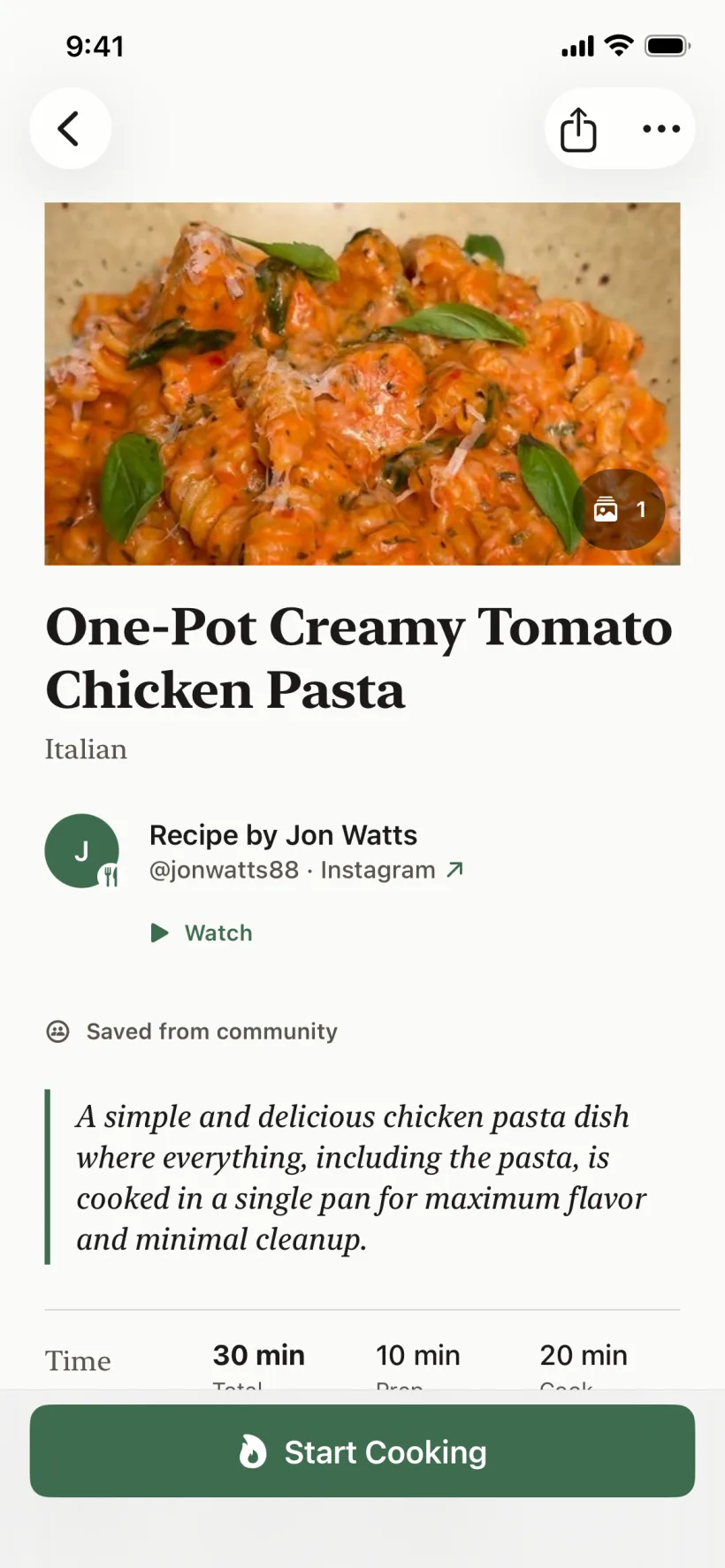
- Tap Start Cooking. On iPhone this is the green button at the bottom of the recipe.
- Read the first step, then tap the arrow on the right when you’re ready for the next one.
If you don’t have any recipes saved yet, the guide to saving recipes from TikTok, Instagram and YouTube and the guide to handwritten recipes and cookbook pages show how to add your first one.
Where to get SeeMeCook
Cooking Mode is part of SeeMeCook’s free plan, and so is having the steps read aloud. SeeMeCook is on the App Store for iPhone and on Google Play for Android.
Cook a recipe you have already saved
Open a saved recipe, tap Start Cooking, and have each step read aloud while you cook.
Get SeeMeCook free