How to Save Recipes From TikTok, Instagram and YouTube
TikTok, Instagram and YouTube each have a way to save a cooking video so you can find it again later. To get a written recipe with ingredients, amounts and numbered steps, share the video to SeeMeCook or paste its link there.
How to save a cooking video inside each app
These are the steps from each company’s own help page. The links to those pages are in Sources at the end of this guide.
Save a TikTok recipe video in Favorites
- Tap the Favorite button on the side of the video. TikTok’s help page says it is also called the Saved button.
- To file the video in a folder, tap View at the bottom of the screen. That opens the Collections tab on your profile.
- Tap Create new collection, give it a name such as Weeknight dinners, and tap Next. The video you saved goes into that collection.
- To find it again later, tap Profile at the bottom, then the Favorites tab, then Collections.
Save an Instagram post or reel in Saved
- Tap Save below a post. On a reel, tap Options and then Save.
- To file a post in a collection, tap and hold Save. Then pick a collection you already have, or tap New collection to make one.
- To find it again later, go to your profile, tap Menu in the top right, and tap Saved under the heading “How you use Instagram”.
Instagram says that only you can see the posts you have saved.
Save a YouTube video in Watch Later or a playlist
- Open the video and tap More below it, then Save. YouTube adds the video to the last playlist you saved to, or to Watch Later.
- A message appears at the bottom of the screen saying which playlist it went into. Tap Change on that message to pick another one.
- To start a playlist for recipes, tap New playlist and give it a name. Choose who can see it, then tap Create.
- Your playlists are listed in the You tab.
All three do the same job, which is to keep the video where you can find it again. The ingredients and the method stay inside the video or its caption. On the night you cook, you still have to pause and rewind with wet hands to check how much cumin went in.
What each way of saving leaves you with
| Way to save | What you have afterwards | Finding it by ingredient | Changing the servings | Cooking from it |
|---|---|---|---|---|
| SeeMeCook | A written recipe with ingredients, amounts, numbered steps and the creator’s credit | Library search matches recipe titles, ingredients and tags | You change the servings on the recipe and the amounts update | Cooking Mode shows one step at a time |
| The save inside TikTok, Instagram or YouTube | The video, kept in that app’s Favorites, Saved or playlist | You find the video again and watch it | You work out the new amounts yourself | You pause and replay the video |
| A screenshot | A picture in your photo library | You look through your photos | You work out the new amounts yourself | You read from the picture |
A screenshot has the same limit as a saved video. It holds whatever was on the screen at that moment, so a recipe told over a minute of video won’t fit into one picture. If your photo library is already full of them, the guide to organizing recipe screenshots shows how to sort them out.
How to turn the video into a written recipe
SeeMeCook works the same way with all three apps. Give it the link to a supported TikTok, Instagram or YouTube cooking video and it writes out the recipe. There are two ways to hand over that link.
The first is sharing. Open the video, use that app’s share option, and choose SeeMeCook from the list of apps your phone offers. Then open SeeMeCook, and the recipe appears in your Library when the import has finished.
The second is copying the link and pasting it, which you can do when SeeMeCook isn’t in your phone’s share list. The buttons have the same names on iPhone and Android.
- Copy the link to the video in TikTok, Instagram or YouTube.
- Open SeeMeCook and go to your Library.
- Tap the + button. A sheet called Import Recipe opens.
- Paste the link into the box under the words “Paste a link or recipe text”.
- Tap Save recipe.
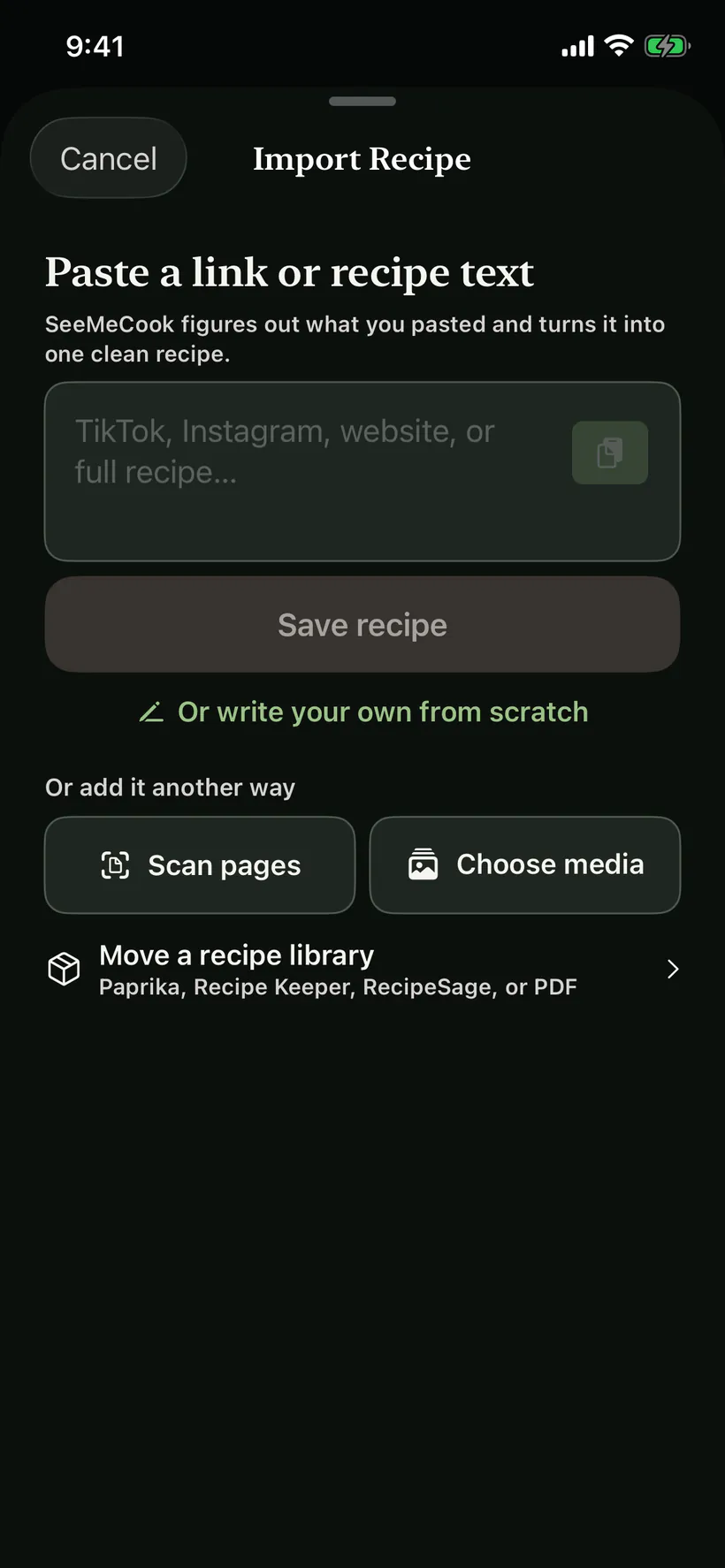
Copy the link to the one video you want, and not the link to the creator’s profile, so that SeeMeCook starts from the right recipe.
What you get back
The saved recipe has a title, the ingredients with their amounts, numbered steps, cooking times, the number of servings, a nutrition estimate and tags.
When SeeMeCook can tell who made the video, that person is credited under the title. The line reads “Recipe by” followed by their name or their @handle, with the app the video came from beside it. The link to the original is kept too, and a Watch link below the credit plays the video again when you want to see how a step was done.
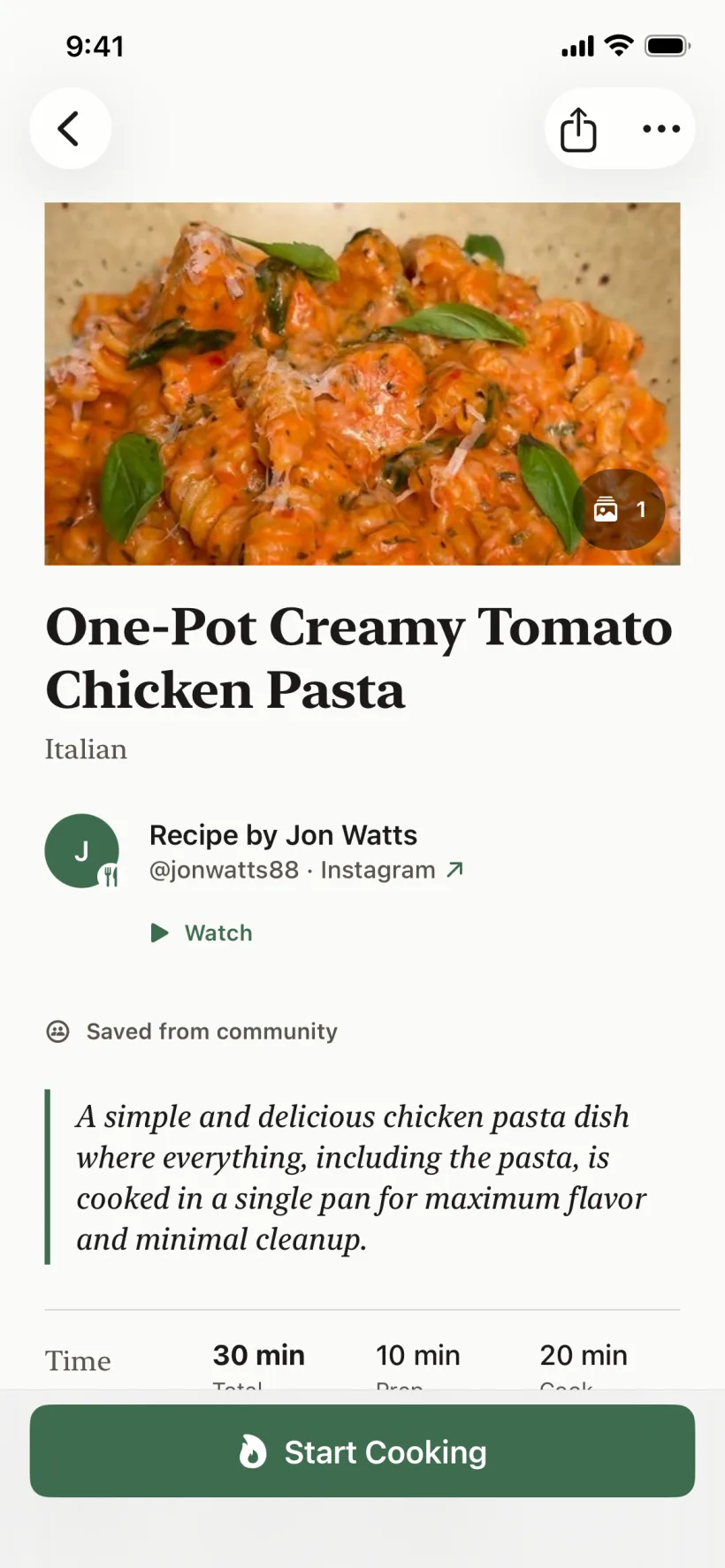
The Ingredients tab shows each ingredient with its amount. You can display the measurements as the creator gave them, or in metric or US units.
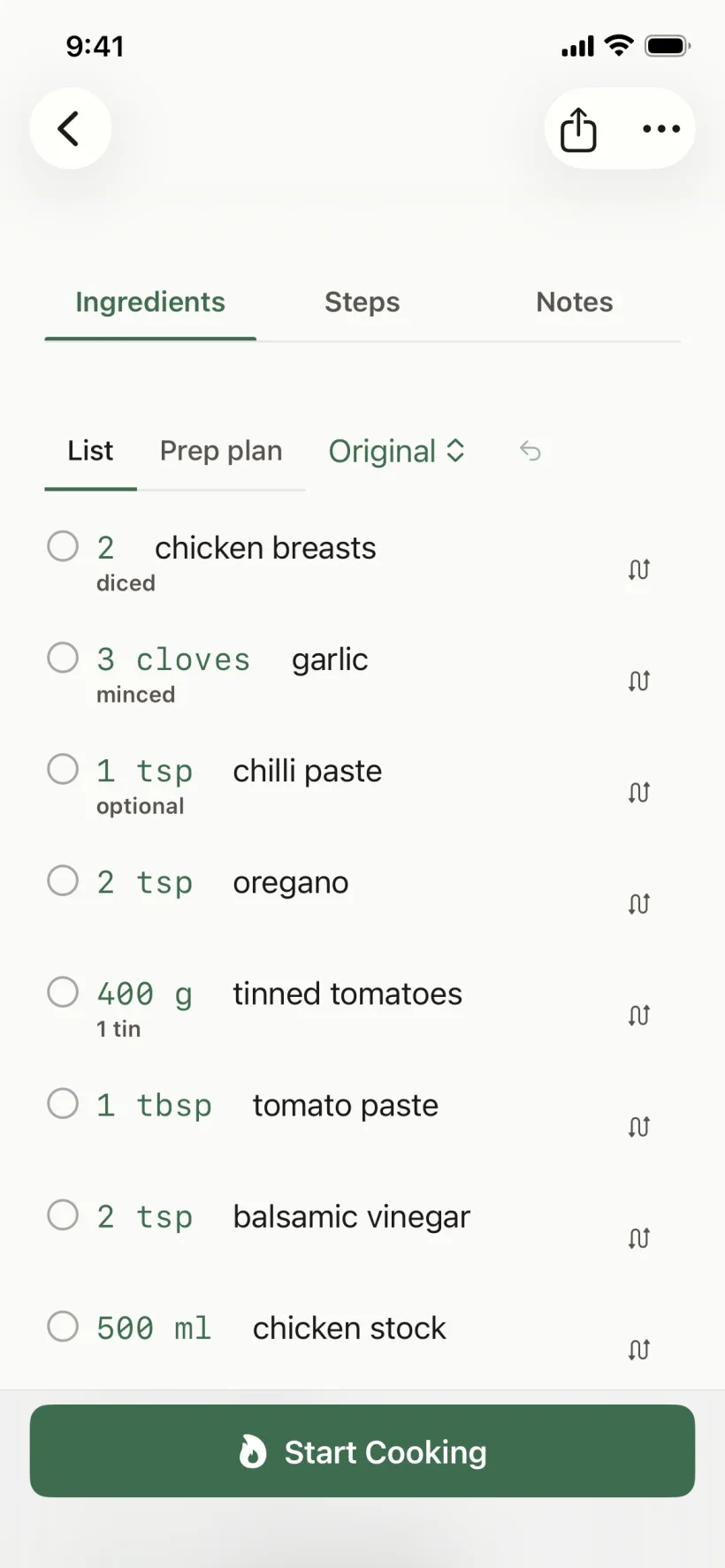
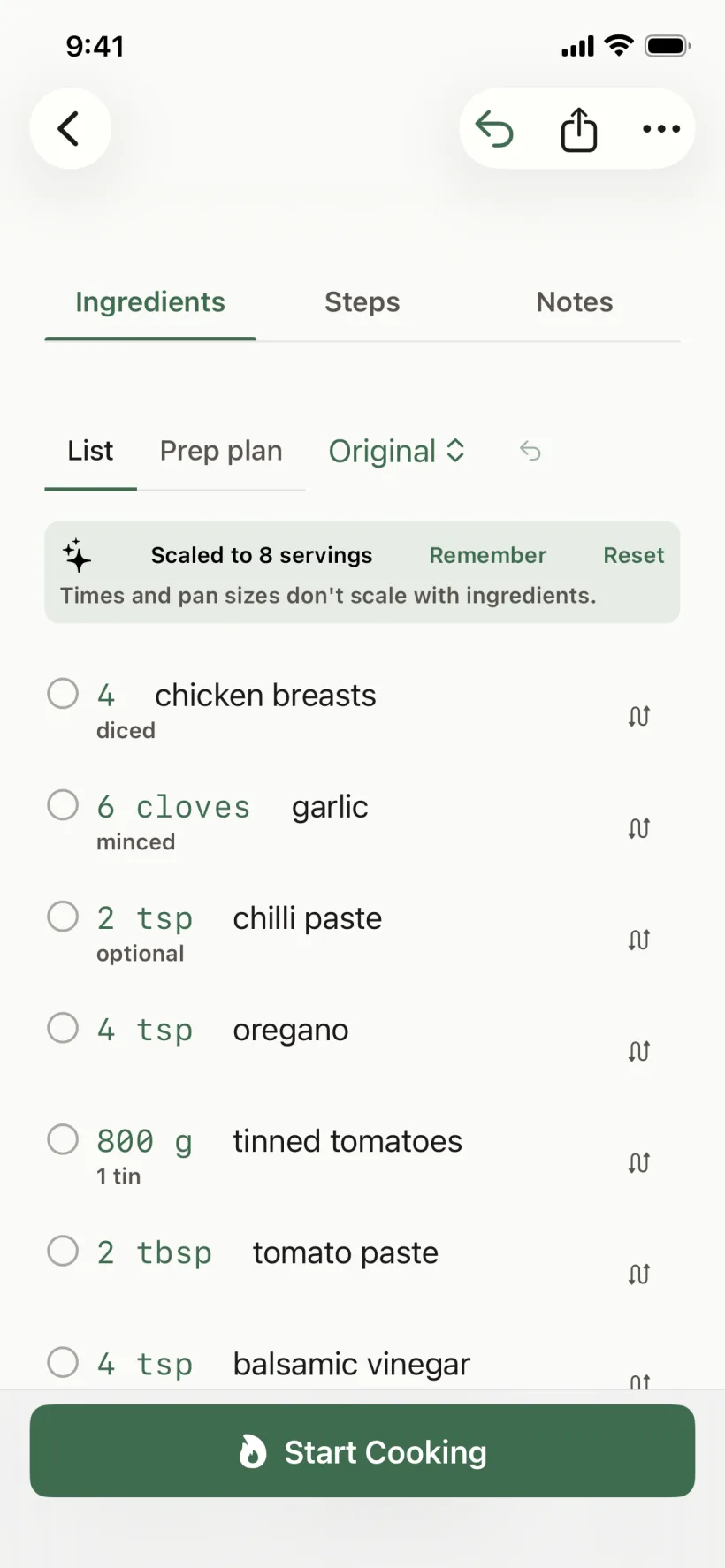
You can change the number of servings on the recipe, and the ingredient amounts update to match. In the next picture the same pasta has been scaled to eight servings, and the app adds a note that times and pan sizes don’t scale with the ingredients.
Read the recipe against its video once before you cook from it. Check the amounts, the units and the order of the steps, and use Edit Recipe to correct anything that doesn’t match.
When the video gives no amounts, or the import fails
Many creators cook by eye and never say how much of anything goes in. When a video does not state quantities, SeeMeCook says so on the recipe, so you know which amounts are estimates that you should taste and adjust.
Not every link can be read, and not every video has a complete recipe. When a failed import can be repaired, its card in your Library shows the words “Import failed”. Tap the card, and there are three ways to fix it.
- Add screenshots or photos that show the ingredients and the method. On iPhone this is Choose photos. It keeps the original link, and you can add up to three screenshots before you tap Extract Recipe.
- Paste a better link, such as the creator’s own recipe page.
- Paste the recipe text itself if the creator wrote it down somewhere, such as in the caption. Paste all of the ingredients and the method, because a title alone is not enough to make a recipe.
Common questions
How do I save a recipe from an Instagram reel?
Tap Options on the reel and then Save so you can find it again inside Instagram. To get the recipe written out, share the reel to SeeMeCook, or copy its link and paste it into Import Recipe.
What if the recipe is on a website linked from the video?
Import that web page in place of the video. Open the creator’s recipe page, copy its address and paste it into Import Recipe. That page is likely to have the amounts written down, so it makes the better source.
Does the creator still get credit?
Yes, when SeeMeCook can tell who made the video. The recipe shows “Recipe by” with their name or handle, and it keeps the link to the original.
Can I use a video that’s already on my phone?
Yes. In Import Recipe on iPhone, tap Choose media and then Choose video. On Android, tap Choose video.
Does this work for photos of a cookbook or a recipe card?
Yes. Photos go in through the same Import Recipe sheet, and the guide to handwritten recipes and cookbook pages has the steps.
Cooking from the recipe you saved
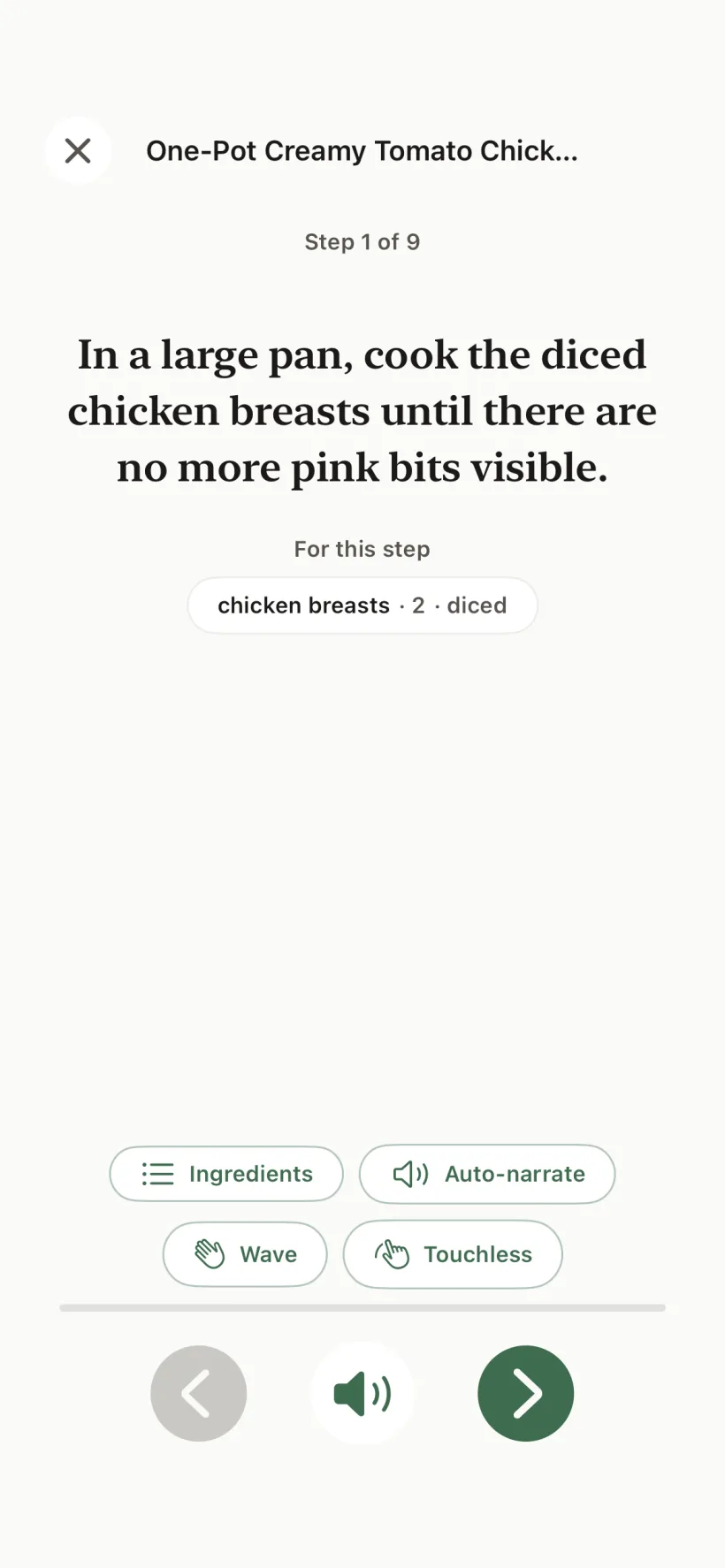
When it’s time to cook, tap Start Cooking on the recipe. Cooking Mode shows one step at a time in large type, with the ingredients for that step, and the Cooking Mode guide covers the rest. SeeMeCook is free on iPhone and Android, and the free plan includes 100 imports every week.
Sources
- TikTok Help Center: Collections on TikTok
- Instagram Help Center: Save posts you see on Instagram
- Instagram Help Center: Create a collection for posts you save on Instagram
- YouTube Help: Create and manage playlists
Save a recipe you want to cook
Share a cooking video or paste its link, check the recipe against the video, and cook it one step at a time.
Get SeeMeCook free