How to Make a Family Recipe Book Everyone Can Add To
A family’s recipes are almost never in one place. Some are on cards in a kitchen drawer, some are links in a group chat, and a few have never been written down at all. In SeeMeCook you can collect them in one Book that every relative you invite can add to from their own phone.
This guide takes the job in order. You set up the Book, invite the family and bring in each kind of recipe. Then you choose a web page or a printed copy for the relatives who don’t use the app.
What your family already has
Before you open the app, find out what recipes there are and who has them. Most families have four kinds of recipe.
- Cards and cookbook pages. One person usually keeps these, and the notes in the margins matter as much as the recipes.
- Links in a group chat. Someone sends a recipe from a website, everyone says it looks good, and three weeks later nobody can find it.
- Videos and photos on phones. A cousin saves cooking videos, and an uncle has a picture of a card that he took at a wedding.
- Dishes nobody wrote down. One person makes them from memory, and the amounts are a handful of this and a pinch of that.
Write a short list of names, and beside each name put what that person has. The list tells you whom to invite first. It also shows which dishes exist only in someone’s memory, and those are the ones to start on.
Set up one Book and invite your relatives
One person makes the Book and becomes its owner. Choose someone who will go on looking after it, because only the owner can invite people, give the Book a public page or print it.
- Open SeeMeCook, go to your Library and tap the Books tab.
- Tap New Book. On iPhone it is at the top right of the screen, and it asks for a name and has a Create button. On Android it opens the Recipe Books screen, where you type the name in the New book name box and tap the + button beside it.
- Tap the new Book to open it.
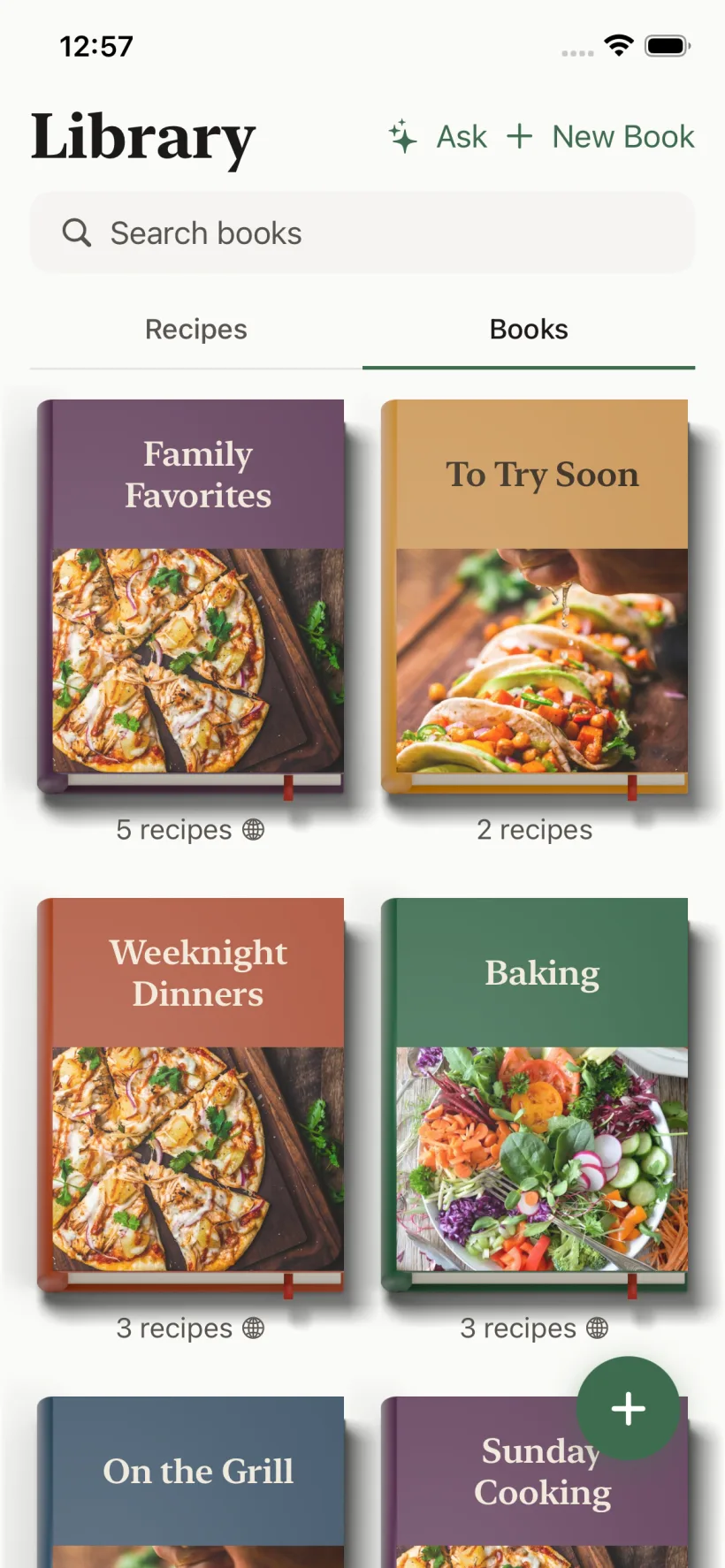
Give the Book a name the family will recognize. Add a few recipes yourself before you invite anyone, because a Book that already holds eight dishes is easier to join than an empty one.
Now invite the family.
- With the Book open, tap the share button at the top of the screen. On iPhone it is the square with an arrow pointing up. A sheet called Share Recipe Book opens.
- Find the Collaborate section, which says that invited people can open the Book and add their own recipes.
- On iPhone, tap Invite Collaborators. SeeMeCook makes an invitation link and shows it. Tap Share Invite to send the link in a message, or tap Copy Invite Link. On Android the link appears by itself, with Share Invite and Copy below it.
When a relative taps the link on a phone that has SeeMeCook, the app asks “Join this shared recipe book?” and they tap Join Book. If they don’t have the app yet, the link opens a web page with links to the App Store and Google Play. After installing SeeMeCook, they go back to that page and tap Open the invite in the app. On Android there is a second way in: Join with code on the Recipe Books screen opens a box where the whole link can be pasted.
Anyone who has the invitation link can join, so send it to each person directly and keep it out of large group chats. The Members row in the same sheet shows how many people are in the Book. Tap it to see their names, with the word Owner beside the person who made the Book.
Everyone in the Book sees every recipe inside it, even the ones that other people added. Each person adds recipes from their own Library and can edit or take out only their own, and the owner can take out any recipe. When you invite people, ask each of them for one named dish. “Can you add your kofta?” gets an answer, and “add your recipes” usually doesn’t.
How each kind of recipe goes in
A recipe is first saved to the Library of the person who has it, and from there it goes into the Book. The table shows the way in for each kind.
| Where the recipe is now | How it goes into SeeMeCook | Where the steps are |
|---|---|---|
| A handwritten card or a page in a cookbook | Photograph it with Scan pages on iPhone or Scan page on Android | The guide to digitizing handwritten recipes |
| A photo or screenshot of a recipe on someone’s phone | Pick the picture with Choose photos | The guide to digitizing handwritten recipes |
| A link to a recipe on a website | Paste the link into the Import Recipe sheet | The guide to saving recipes from TikTok, Instagram and YouTube |
| A cooking video on TikTok, Instagram or YouTube | Share the post to SeeMeCook from the app it is in | The guide to saving recipes from TikTok, Instagram and YouTube |
| A dish nobody wrote down | Tap Or write your own from scratch and type it in | The next section of this guide |
The guide to digitizing handwritten recipes has the full steps for cards, cookbook pages and photos, including how to take the picture and what to check afterwards. The guide to saving recipes from TikTok, Instagram and YouTube has the steps for links and videos.
When an import finishes, SeeMeCook offers to add the new recipe to a Book straight away. For a recipe that is already saved, open it, tap the three-dot button and choose Add to Book. On iPhone you can also work from inside the Book, where the + beside the Search recipes box lets you pick recipes from your Library. Once the Book grows, the guide to organizing recipe screenshots explains how to divide it into smaller Books and how to use tags.
Recipes that were never measured
Old cards often name an ingredient and give no amount, and a dish made from memory has no amounts at all. When a card or a video doesn’t state the quantities, SeeMeCook says so on the recipe, so you know which numbers to treat as estimates.
The way to get real amounts is to cook the dish once with whoever makes it.
- Ask them to make it as usual, and measure each ingredient before it goes in. Weigh the bag of flour before and after, and tip the handful of rice into a measuring cup on its way to the pot.
- Write down the times, the heat, and how the food should look when each stage is done. “Until the onions are the color of tea” is worth keeping word for word.
- Afterwards, open the recipe in SeeMeCook, tap Edit Recipe and put in the amounts you measured.
Where an amount really does change from one day to the next, say so in the step and give the usual figure. Only the person who saved a recipe can edit it, so agree on who that will be before you start cooking.
Relatives who don’t use the app
Some relatives won’t install an app. For them, the owner can give the Book a web page.
- Open the Book and tap the share button again.
- Under Public link, tap Make Public. The sheet now shows the web address of the Book and says that anyone with the link can view the Book and can’t edit it.
- Tap Share Link to send the address, or tap Copy Link.
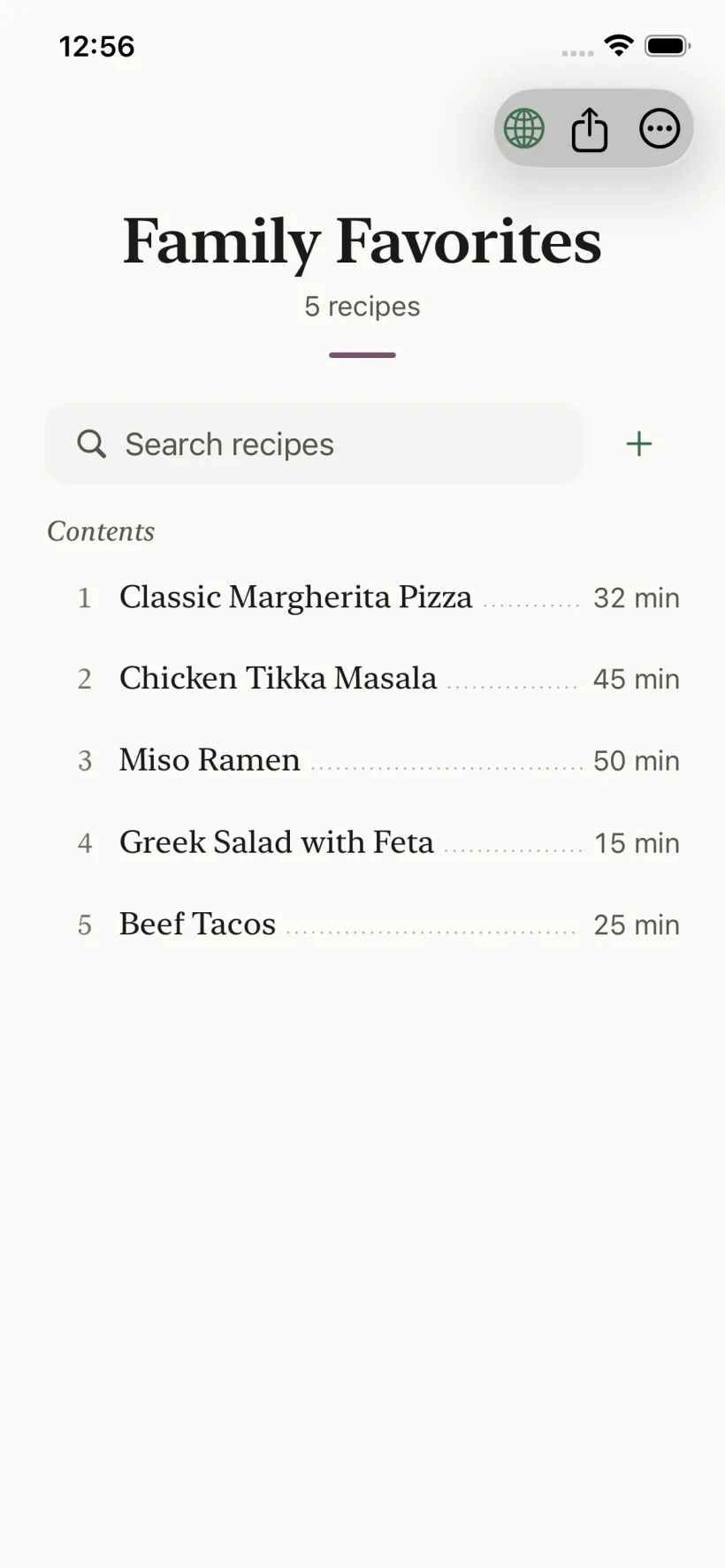
The page opens in any web browser, without an app or an account. It shows the name of the Book, how many recipes are inside, and a card for each recipe with its title, its cooking time and its photo if it has one. In the app, a globe marks a public Book, as it does for Family Favorites in the pictures above. Make Private in the same sheet takes the web page down again.
A card on the page opens the whole recipe only when that recipe has a public page of its own. Recipes saved from public websites and videos usually have one. A recipe that you photographed or typed in yourself has none, so the page shows its title and its cover photo and leaves out its ingredients and steps. To let people read it in a browser, open the recipe and tap Share to Explore. SeeMeCook asks you to confirm, and explains that anyone will be able to find the recipe in Explore, where the app lists public recipes. You can unshare it later.
Those ingredients and steps are left out in the browser only. Making the Book public also shares your own recipes in it with people who use SeeMeCook. The web page has a link that opens the Book in the app, and on an Android phone anyone who follows it can read every recipe of yours in full, even one you photographed or typed in. A public Book is listed on your SeeMeCook profile too. A private recipe that another relative added stays out of the public Book until that relative shares it.
If a recipe must stay inside the family, keep the Book private, or move that recipe to a separate Book that stays private. Invite the relatives who use the app to join it, and give the others a printed copy.
A printed copy for the family
A printed copy suits relatives who want something to hold.
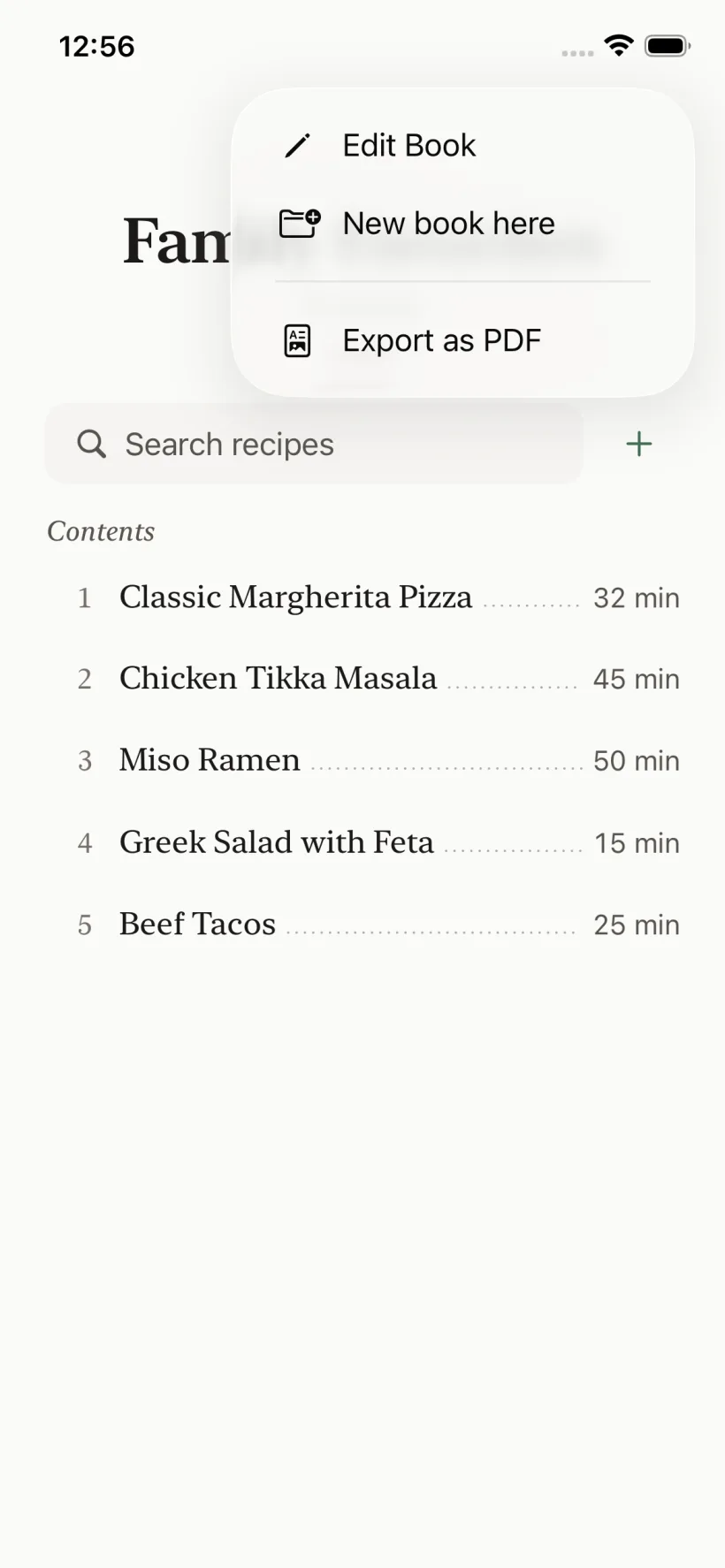
- Open the Book and tap the three-dot button at the top of the screen.
- Tap Export as PDF.
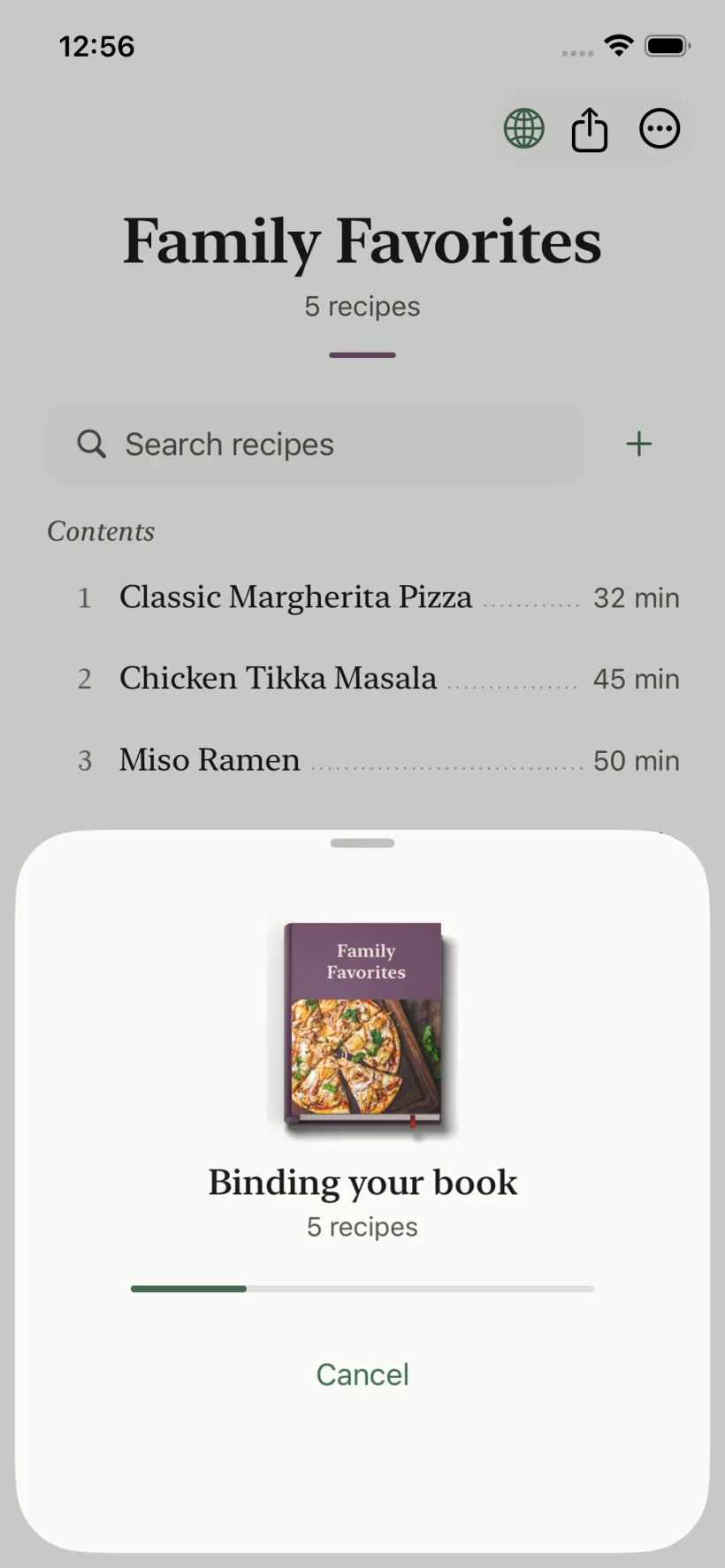
On iPhone, a sheet reads “Binding your book” and shows the number of recipes and a progress bar. A Book with many photos takes longer than a small one. When the PDF is ready, the phone’s share sheet opens with it, and from there you can save the file, send it to someone or print it.
The PDF begins with the cover of the Book. A contents page comes next, and then every recipe in the order the Book lists them, including the recipes your relatives added. Only the owner of the Book has Export as PDF in the menu. Export as PDF is part of SeeMeCook Pro, which is $4.99 a year or $2.99 a month in the United States. The shared Book, the invitations and the public page are all in the free app.
Common questions
Do relatives need the app to add recipes?
Yes. Recipes are added from inside SeeMeCook on iPhone or Android, after the person has joined through the invitation link. Relatives who only want to read can use the web page of the Book or a printed copy.
Can two people keep different versions of the same dish?
Yes. Each person saves their own version and adds it to the Book, and both appear in the contents. Put the name of the cook in each title so that the family can tell the two apart.
Can someone leave the Book or be removed from it?
Yes. A person who joined can leave with Leave Book in the Share Recipe Book sheet, and the owner can remove someone from the Members list. The recipes that person added leave the Book with them.
Sources
Start your family’s recipe Book
Make one Book in SeeMeCook, invite your relatives, and let each of them add the recipes they hold.
Get SeeMeCook free